1. MitID Erhverv#
Note
Note that using TrustView with MitID Erhverv requires the installation of the TrustView MitID Erhverv module.
1.1. Setup MitID Erhverv certificate profile#
Before ordering MitID certificates or adding an OCES certificate for the first time in TrustView, a certificate profile must be setup on the MitID Erhverv Portal.
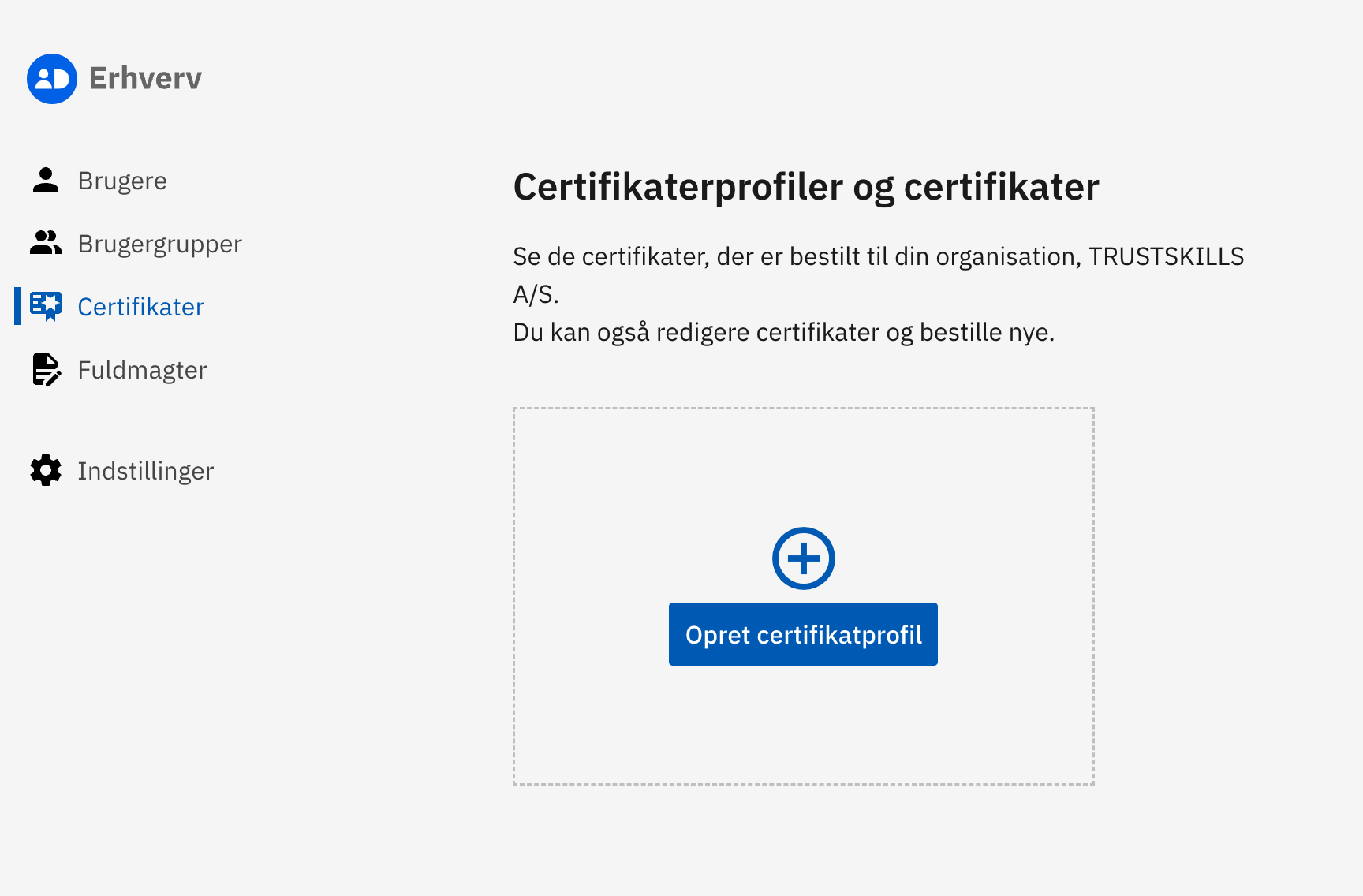
Create a new certificate profile:
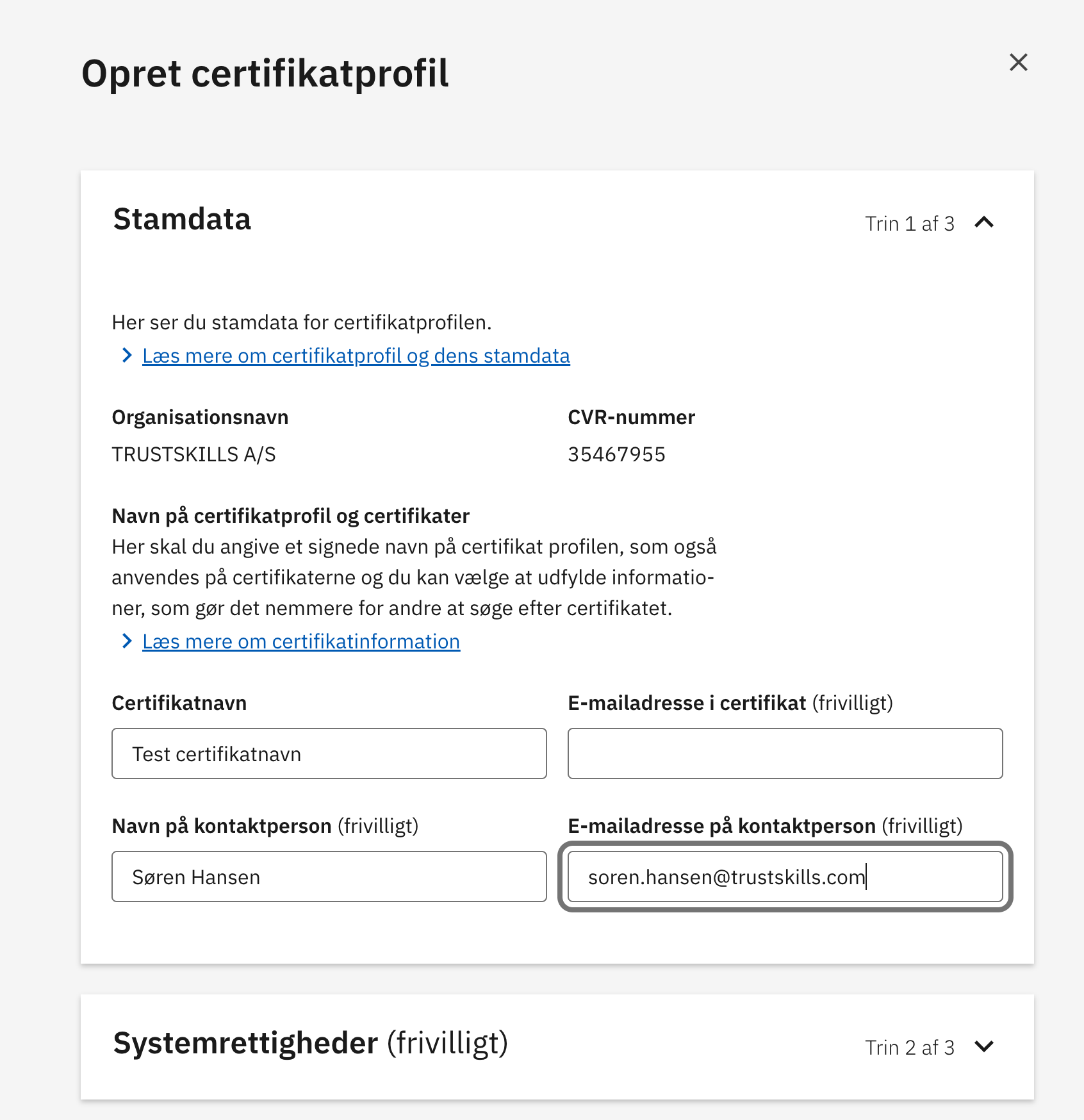
The fields for name and e-mail for contacts, must be filled out in this case (even though it is shown as optional). This will allow the method of identification of a one-time code to be selected in the next step.
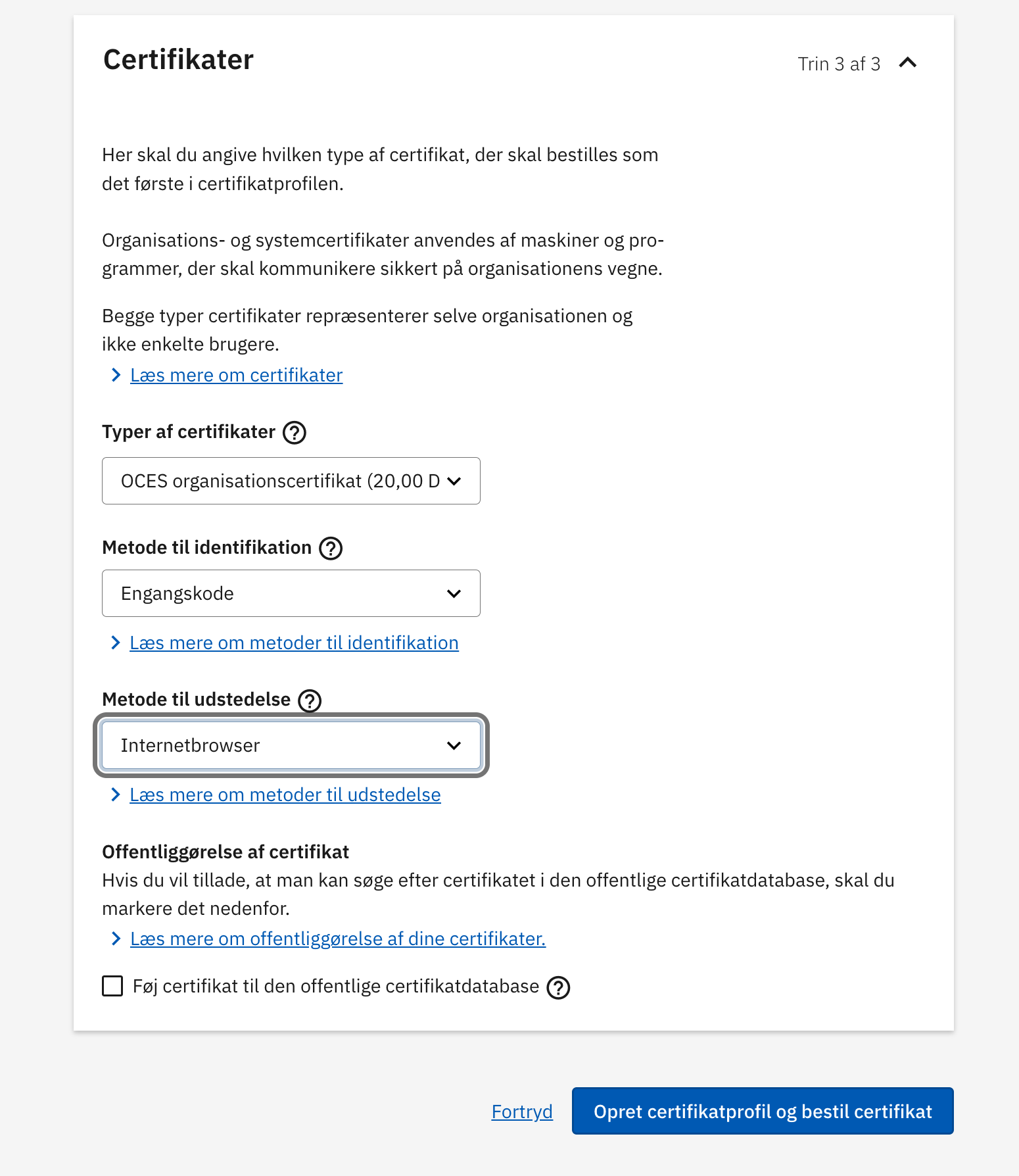
The identification method of a one-time code and the issuing method of the internet browser must be selected:
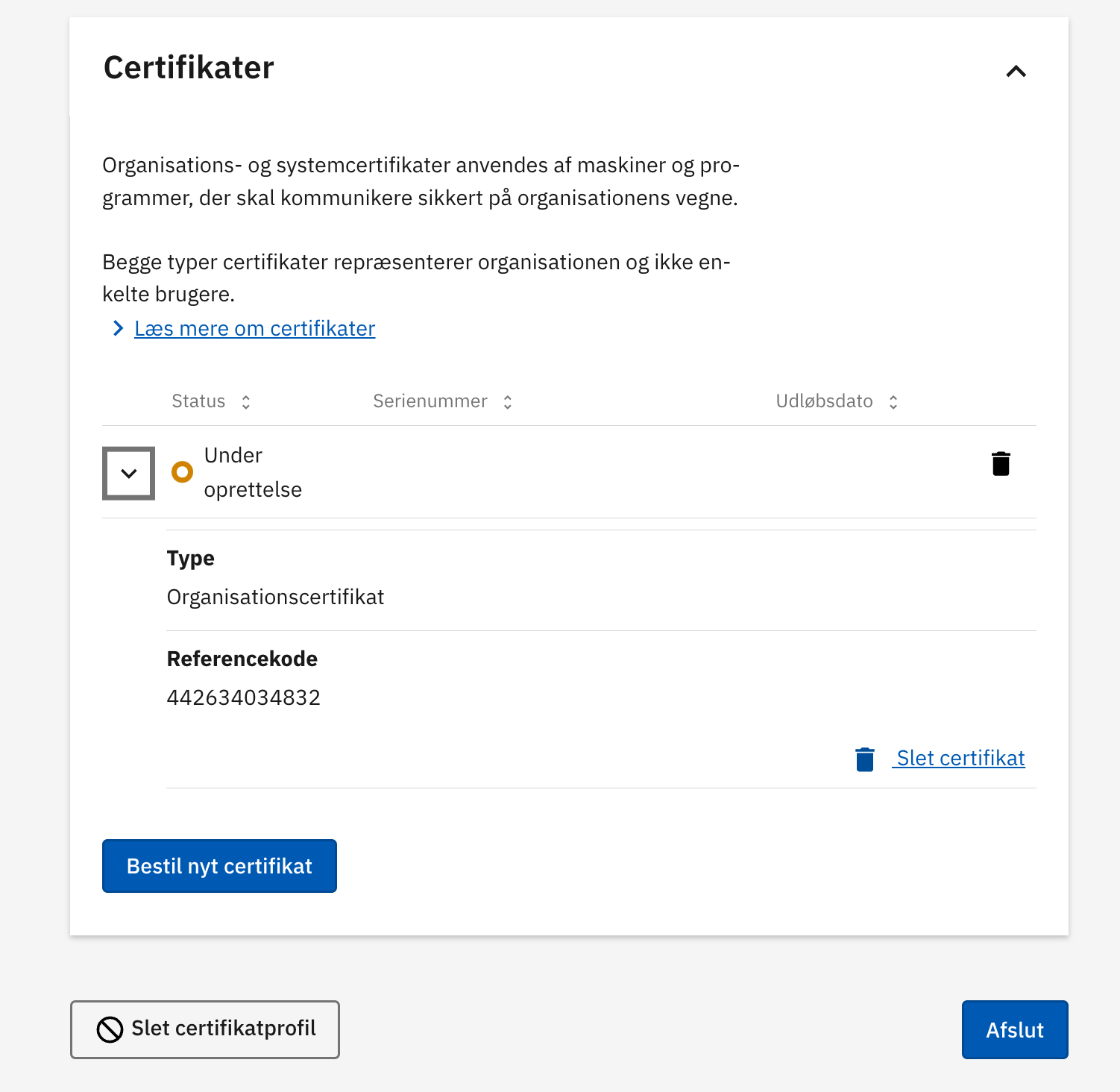
After the certificate profile has been created, note the one-time password displayed. The reference number is available when viewing the certificates section of the certificate profile created (or you can extract it from the issuance link in the e-mail sent to the contact e-mail address used during the certificate profile creation).
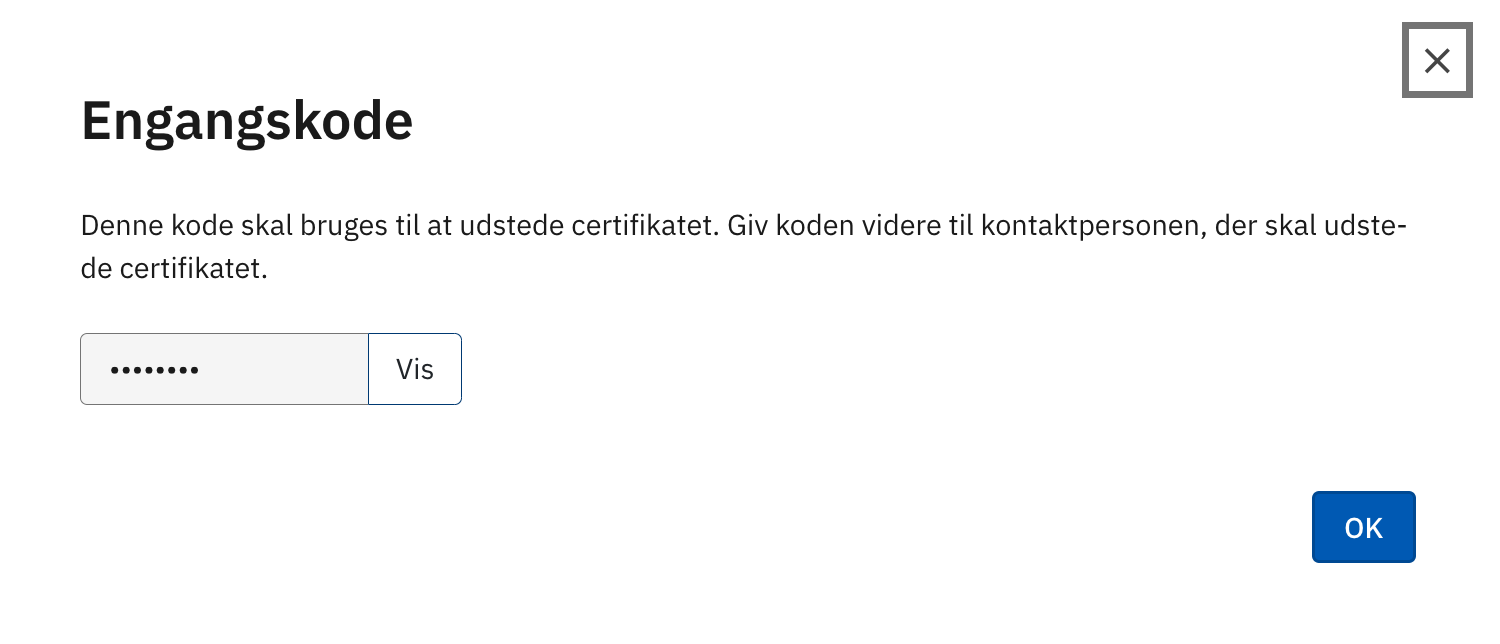
Once that has been completed, the next time the OCES certificate needs to be renewed, the certificate can be renewed from inside TrustView, by clicking
Renew nowon the OCES certificate detail page.Important
It is only possible to renew it from TrustView before the certificate is expired, otherwise you would have to order a new OCES certificate and import it again.
Inside TrustView, to get the OCES certificate issued, go to
MitID Erhvervin the left menu, clickAddand choose theIssue MitID Erhverv certificateoption.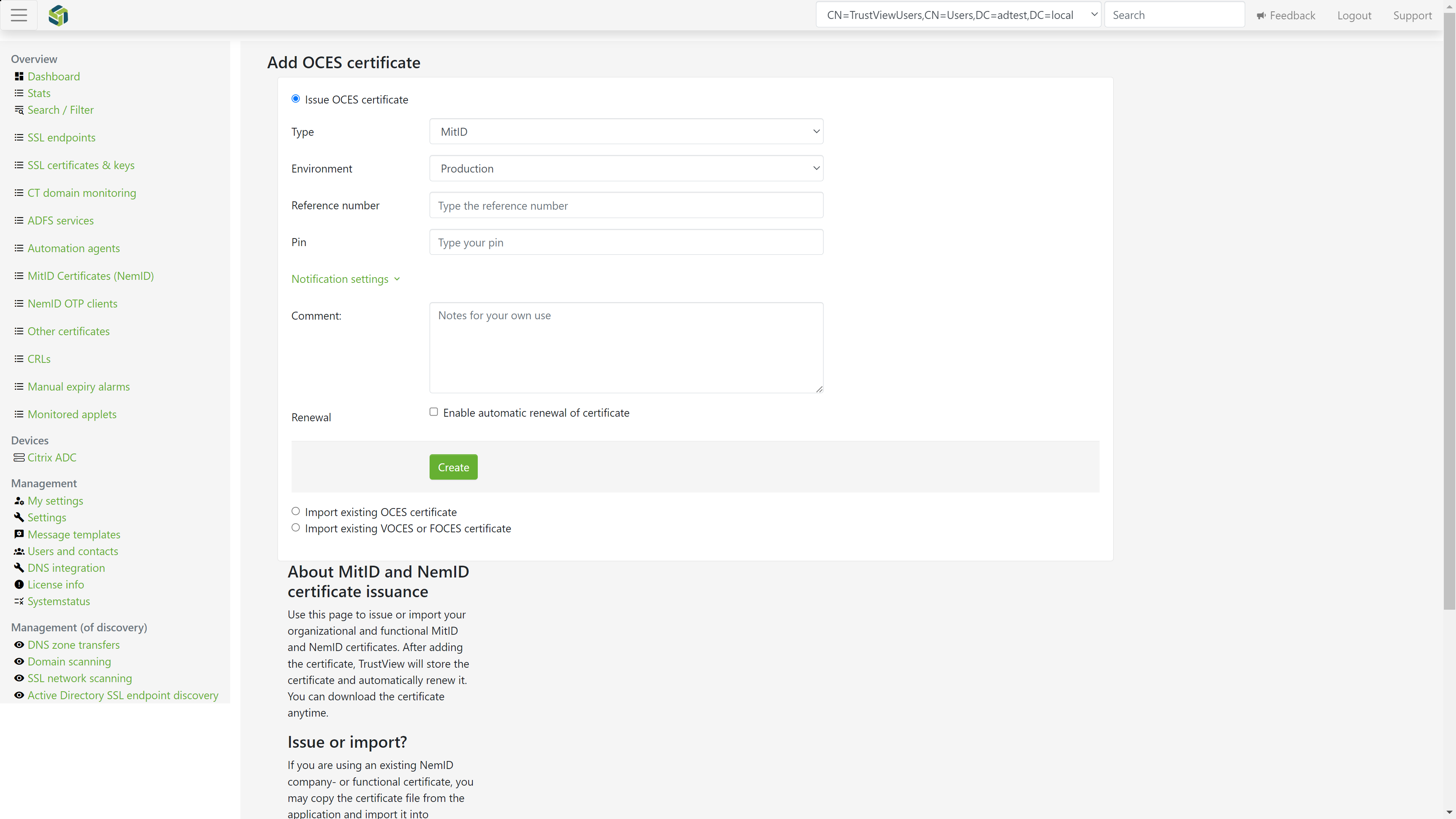
Fill out the form with the
PINandReference numberyou got from the MitID Erhverv portal earlier, and set the appropriateEnvironment(Test or Prod) for the certificate. ClickCreateand the OCES certificate will now be issued to TrustView, which will monitor it and you have the option to get it renewed automatically or simply clickRenew nowto manually renew it directly from TrustView.Important
The renewal must take place inside TrustView, before the OCES certificate expires. If the MitID Erhverv certificate expires, you must restart the process directly from the MitID Erhvervs portal and issue it from inside TrustView or simply import it, to get it monitored by TrustView again, after the renewal.
1.2. MitID Erhverv renewal#
In order to be able to renew MitID Erhverv certificates, an action is required.
Send an email to mitiderhverv@digst.dk with the following content:
Note
Digst usually replies back within a few days. You can read more here.
1.3. MitID Erhverv e-mail validation error#
Some changes has been applied to the process, which you can read more about here.
If you need to renew any OCES or MitID Erhvervs certificates, you may encounter this error in the event log of the detail page of the certificate:
1"detailed_error": "Error requesting client certificate response: {\"errorReasonCode\":\"CertificateEmailNotValidated\",\"message\":\"Email used for the certificate is not validated!\"} - 400",
2"entrytype": "MONITOREDOCESCERTIFICATE_ISSUE_ERROR"
To validate e-mail during renewal of OCES3 certificates using TrustView complete the following steps:
Login to MitID Erhvervs portal
Select the certificate profile
Start a renewal process
Locate the e-mail sent to the e-mail address included in the certificate profile
Click the link to validate the e-mail address in the e-mail
Click
Verifyon the page opened by the linkOnce the e-mail validation has been completed, click
Renew nowinside TrustView on the same MitID Erhvervs certificate that you attempted to renew before, when you encountered the error
Important
Every time you encounter this error during renewal of a MitID Erhvervs certificate, you will need to go through this process to validate the e-mail.